Digital impressions have transformed the way dentists work. However, even the most advanced intraoral scanners can produce files that cause problems downstream. STL file errors are one of the most common reasons dental cases get delayed or require resubmission at the lab level.
At Dentek Digital, we work with dental practices across Greater Phoenix — from Scottsdale to Chandler — every single day. Because of this, we see the same submission issues come up again and again. The good news is that most of them are easy to avoid.
This guide walks you through the most frequent STL file submission mistakes and how to prevent them. Whether you are a seasoned digital dentist or just transitioning to a fully digital workflow, these tips will help you submit cleaner cases and get faster, more accurate restorations.
Why STL File Quality Matters So Much
An STL file is the digital blueprint for your restoration. Our CAD/CAM technicians use it to design and mill every crown, bridge, and appliance we fabricate. Therefore, the quality of that file directly impacts the quality of the finished product.
A corrupted or incomplete scan gives our team an inaccurate starting point. As a result, even the best design software and milling equipment cannot compensate for a bad file. Think of it like building a house on a crooked foundation — no matter how skilled the builders are, the result will reflect the foundation.
Additionally, when files need to be corrected or rescanned, it adds time to your case. For dental practices in Mesa, Gilbert, and Tempe, where patient schedules are tight, that delay matters.
The Most Common STL File Errors We See
Understanding where things go wrong is the first step to fixing them. Here are the submission mistakes our team at Dentek Digital encounters most often.
1. Incomplete Margin Capture
This is the most frequent issue we see. The margin line — the edge of your preparation — must be fully captured in the scan. If even a small section is missing or blurred, our technicians cannot accurately design the restoration margin.
Furthermore, an unclear margin can lead to a restoration that does not seat properly or leaves gaps at the gingival margin. Always review your scan before submitting. Make sure the full circumference of the prep is clean and visible.
2. Insufficient Tissue Retraction
Soft tissue covering part of the prep is a very common culprit. Before scanning, use appropriate retraction cord or retraction paste to move tissue away from the margin. This gives the scanner a clear line of sight.
In our experience working with practices across Phoenix and Scottsdale, cases with good tissue management consistently result in cleaner scans and faster turnaround. Moreover, proper retraction reduces the chance of a remake entirely.
3. Scan Artifacts and Voids
Artifacts appear as holes, spikes, or irregular surfaces in the mesh data. They typically result from patient movement, moisture contamination, or scanner calibration issues. Additionally, voids — areas where no surface data was captured — can occur if the scanner moves too quickly across a surface.
Most intraoral scanner software flags these issues automatically. However, it is still important to visually inspect the model before exporting. A clean STL file has a smooth, continuous surface with no visible gaps or distortions.
4. Missing Opposing Arch or Bite Registration
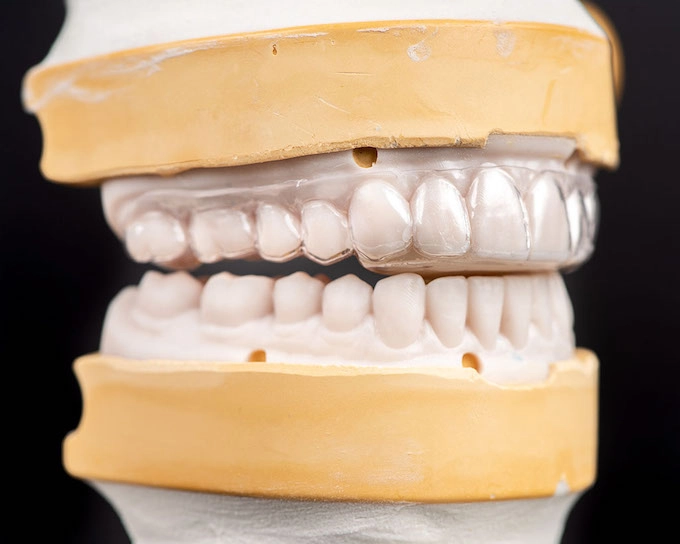
A common submission mistake is sending only the prep arch without the opposing arch or a bite scan. For most dental restoration types — especially crowns, bridges, and occlusal splints — our team needs all three elements to design a restoration that functions correctly in the mouth.
Without the opposing arch, we cannot verify occlusal clearance. Without the bite scan, we cannot confirm proper intercuspation. Always include all three scans as part of your standard submission protocol.
5. Incorrect File Format or Export Settings
Not all STL files are created equal. Some scanners offer multiple export resolutions or formats. Submitting a file at too low a resolution results in a blocky, faceted model that lacks the fine detail needed for an accurate restoration.
On the other hand, extremely high-resolution files can cause processing issues. Check with our team about the recommended export settings for your specific scanner. We work with all major scanner platforms and can guide you through the optimal settings for your workflow.
6. Unlabeled or Mislabeled Files
This one might seem minor, but it causes real problems. Submitting files without clear patient identifiers, tooth numbers, or restoration type creates confusion and slows case processing. Therefore, always label your files clearly before uploading.
Include the patient name or ID, the tooth number, the restoration type, and the date of the scan. This simple step keeps cases organized and ensures our technicians start working on the right restoration immediately.
How to Review Your Scan Before Submitting
Most intraoral scanner platforms include a built-in review tool. Use it every time before you export. Here is a quick checklist to follow:
- Margin visibility: Is the full prep margin visible and unobstructed?
- Tissue clearance: Has soft tissue been adequately retracted away from the prep?
- Scan completeness: Are both the prep arch and opposing arch fully captured?
- Bite scan: Is the bite registration scan included and accurate?
- Surface quality: Does the model surface appear smooth with no voids or artifacts?
- File labeling: Are all files clearly named with relevant case information?
Running through this checklist takes only a minute or two. However, it can save hours of back-and-forth communication and eliminate unnecessary delays in your restoration turnaround.
If you have questions about your submission, contact Dentek Digital before you send the case. Our team is always available to help you prepare a clean, complete file submission.
Scanner-Specific Tips for Greater Phoenix Practices
Different intraoral scanners handle file export slightly differently. Meanwhile, the core principles of a good scan remain the same across all platforms. Here are a few general tips that apply regardless of which scanner your practice uses.
Keep Your Scanner Calibrated
Calibration drift is a real issue, especially in high-volume practices. If your scanner has not been calibrated recently, your scans may carry systematic errors that are not immediately obvious on screen. First, follow your scanner manufacturer’s recommended calibration schedule. Then, keep a log of calibration dates for reference.
Control Your Environment
Lighting, temperature, and moisture all affect scan quality. In the Phoenix area, heat can be a factor — especially if scanners or materials are stored in conditions that fluctuate throughout the day. Additionally, moisture from saliva or spray is a common cause of scan artifacts. Use proper isolation techniques consistently.
Train Your Team
Scan quality is not just the dentist’s responsibility. In many practices across Chandler and Gilbert, dental assistants and hygienists assist with or perform digital impressions. Therefore, everyone involved in scanning should receive proper training and periodic refreshers.
What Happens When We Receive a Problem File
When our team receives a file with STL file errors, we do not simply guess or proceed blindly. First, we identify the specific issue. Next, we contact the submitting practice directly to explain the problem and request a corrected scan or additional information.
In some cases, our skilled technicians can digitally repair minor surface artifacts using specialized software. However, significant issues — like a missing margin or absent bite scan — always require a corrected submission. Because of this, catching these issues on your end before submission is always the faster path.
We pride ourselves on clear, fast communication. Our goal is to get your case into production as quickly as possible while maintaining the high quality standards that dental practices across Greater Phoenix rely on.
Frequently Asked Questions About STL File Submissions
What is the most common STL file error Dentek Digital sees?
Incomplete margin capture is the most frequent issue. Always verify that the full prep margin is visible and unobstructed before exporting your file.
Do I need to include the opposing arch scan for every case?
Yes, in most cases. Crowns, bridges, and splints all require the opposing arch and a bite scan for accurate occlusal design. Contact our team if you are unsure what is needed for a specific case type.
What file formats does Dentek Digital accept?
We work with STL files from all major intraoral scanner platforms. If you are unsure about export settings or file compatibility, reach out to us before submitting. We are happy to guide you.
Can Dentek Digital fix a corrupted or artifact-heavy STL file?
Our technicians can repair minor surface artifacts in many cases. However, significant data gaps — especially around the margin or bite — typically require a corrected scan from the practice.
How can I reduce STL file errors in my practice?
Focus on tissue retraction, scanner calibration, proper isolation, and thorough pre-submission review. Training your team consistently and following a scan checklist will also reduce errors significantly over time.
Partner with Dentek Digital for Smoother Case Submissions
At Dentek Digital, we have been at the forefront of digital dentistry since its earliest days. We work with dental practices throughout the Greater Phoenix area — including Scottsdale, Mesa, Tempe, Chandler, and Gilbert — to deliver precise, high-quality restorations efficiently.
Avoiding STL file errors is one of the simplest ways to improve your workflow and get better results for your patients. Furthermore, when submissions are clean and complete, your cases move faster through our production process and arrive on time.
We are here to support your success every step of the way. Send us a case today and experience the Dentek Digital difference — or reach out to our team with any questions about file preparation, scanner compatibility, or case submission best practices.